Features
Everything your screenshots were trying to tell you.
How it works
From “I’ll remember that” to done.
- Step 1
Share
Screenshot like you always do. Share it to Screenshot OS from Photos or any app, or pick a few at once.
- Works from the share sheet
- Several at a time
- Waits safely on your phone if you’re offline
- Step 2
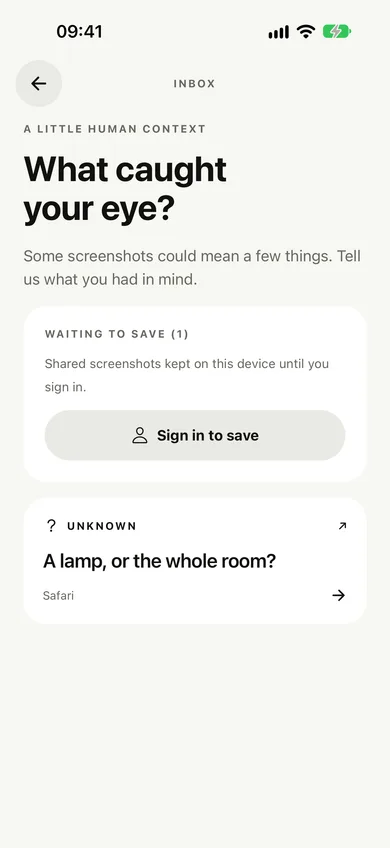
Understand
Say what you had in mind in a tap, or let AI read the details for you: dates, places, prices, links.
- Your context, your call
- AI only when you ask and allow it
- Check the details before acting
- Step 3
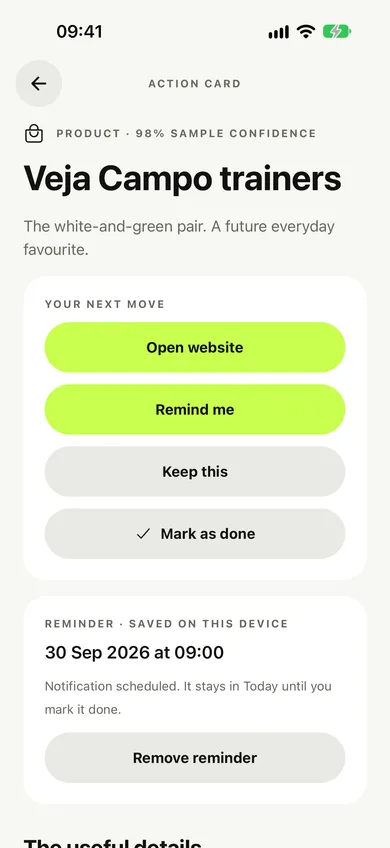
Act
Each screenshot becomes an Action Card with a next step. Set a reminder, add it to your calendar, open the map or the website.
- Reminders on your phone
- One tap to your calendar
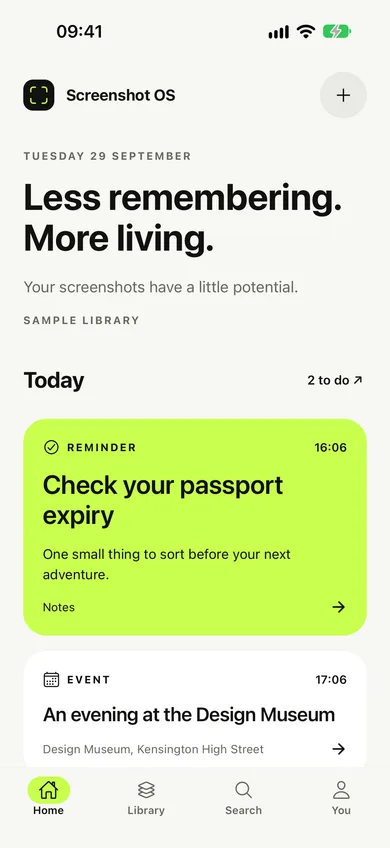
- Today shows what’s due


What it understands
Five kinds of screenshot, each with a next step.
Products
Trainers, a lamp, a jacket you saw on someone’s story.
For example
- Veja Campo trainers
- A rattan floor lamp
Next steps
- Open the website
- Remind me later
- Save to a collection
Places
Restaurants, bars, shops and viewpoints worth the trip.
For example
- BRAT, Shoreditch
- That ramen place
Next steps
- Open in Maps
- Save to a collection
- Remind me
Events
Gigs, exhibitions, talks and the date someone mentioned.
For example
- Design Museum late
- Gig, Friday 8pm
Next steps
- Add to your calendar
- Remind me
- Open the website
Tasks
The little jobs that live in screenshots and never get done.
For example
- Check your passport expiry
- Renew the car tax
Next steps
- Remind me
- See it in Today
- Mark as done
Notes
Recipes, quotes, book tips, Wi-Fi passwords.
For example
- Miso aubergine
- Tomorrow, and Tomorrow…
Next steps
- Keep it
- Save to a collection
- Find it with search
Share from any app
Getting screenshots in takes a second.
- 1
Take the screenshot
The way you always do. Nothing to change.
- 2
Tap Share
From the thumbnail, Photos, or any app with a share button. Pick several at once if you like.
- 3
Choose Screenshot OS
It lands in your Inbox, even if you’re offline.
- 4
Add a little context
Say what you had in mind, or ask AI to read the details for you.
Everything else
Small things that add up.
Search by what you remember
Type a place, a shop or what you wanted to do. It searches your notes, the details and what the AI read.
Reminders that land
A nudge on your phone at the right moment, with the screenshot one tap away.
Collections
Group a trip, a wishlist or dinner ideas and keep them together.
Share from any app
Send screenshots in from Photos or anywhere with a share button.
Light and dark
Follows your phone’s appearance, day or night.
Today, sorted
Everything that’s due, in one calm list. Tick it off and it’s done.
Accessible by design
Built to work with larger text, VoiceOver and TalkBack, and reduced motion.
For everyone
Accessible, and easy on the eyes.
Larger text
Every screen follows your phone’s text size, including the largest settings.
Screen readers
Labels and actions are written for VoiceOver and TalkBack.
Reduced motion
Animations calm down when you ask your phone for less motion.
Light and dark
Matches your phone’s appearance, with contrast that passes WCAG AA.
Ready when you are.